Working with AI · Feature guide
Full-screen AI agent
Use a dedicated conversation workspace to understand league status and prepare supported changes for review.
Screenshots captured October 21, 2026 · Demo workspace
Open the page
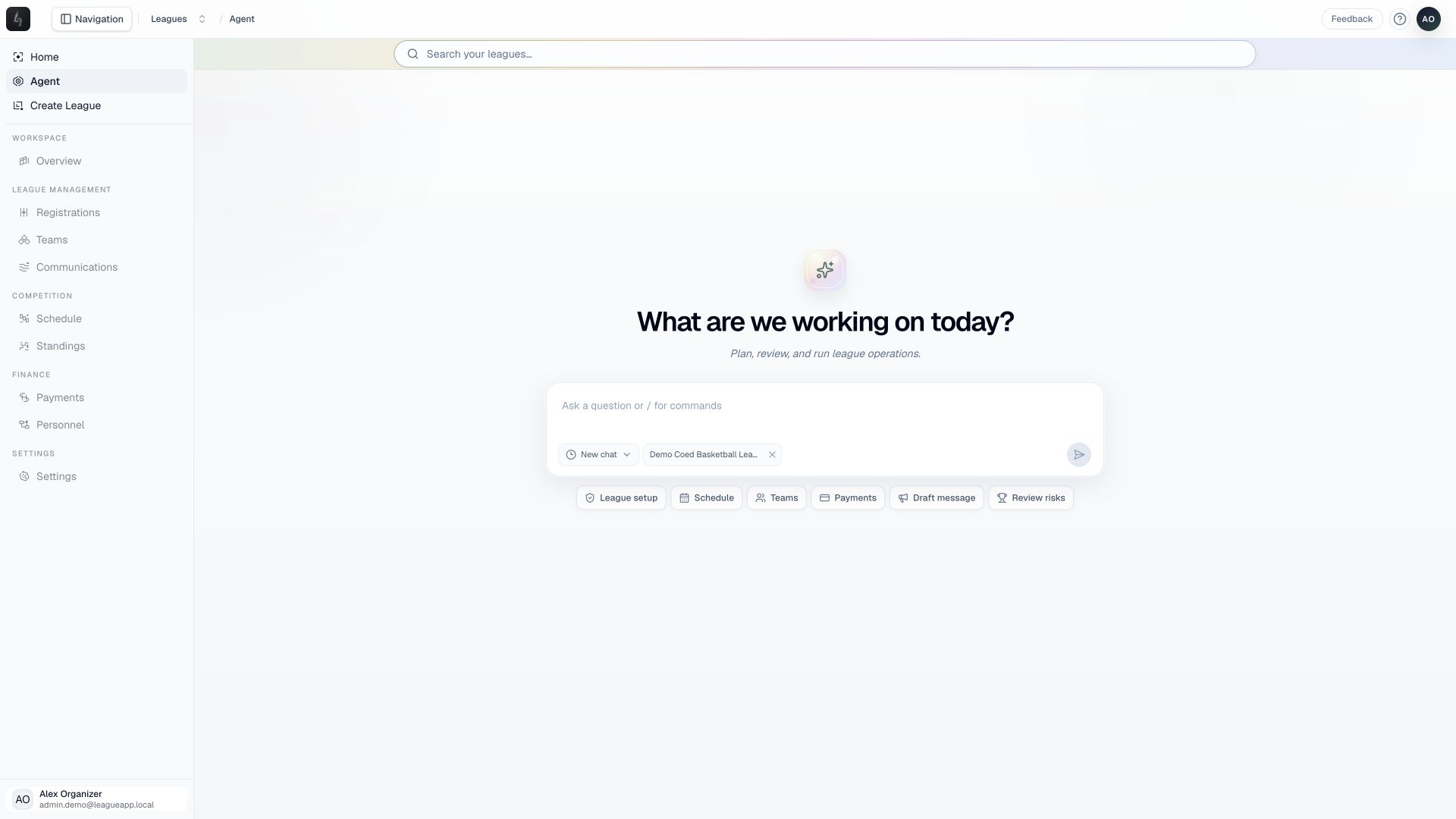
Choose Agent in the organizer sidebar to open the full-screen conversation workspace.
In the workspace
How to use it
- Check the league selector near the composer. Choose a league when your question concerns an existing league.
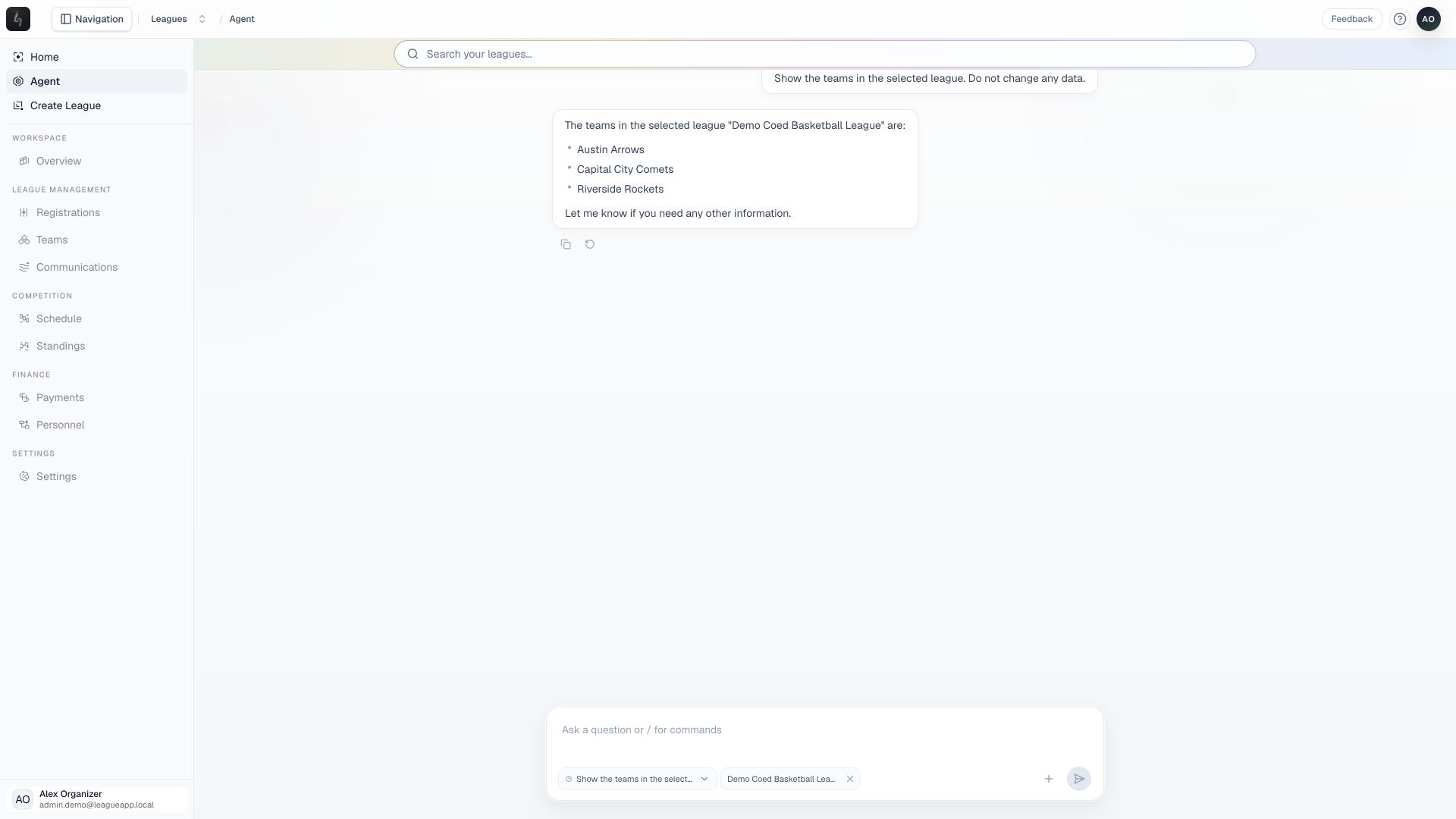
- Ask a focused question, such as “Show the teams in the selected league,” or request a draft with the relevant dates and constraints.
- Read the response and any proposed action card. Check its league, scope, and warnings before confirming a data-changing action.
- Use chat history to revisit a conversation, or start a new chat when you need a separate thread of work.
Things to check
AI is optional and requires access to the selected league. It supports league setup, status, teams, schedules, personnel, and announcements within its current tool set.
The agent does not operate registration or payment workflows. Use those workspaces directly. Data-changing tools require confirmation.
For example requests, see the sports league AI prompts guide.