Running a league · Feature guide
Registrations
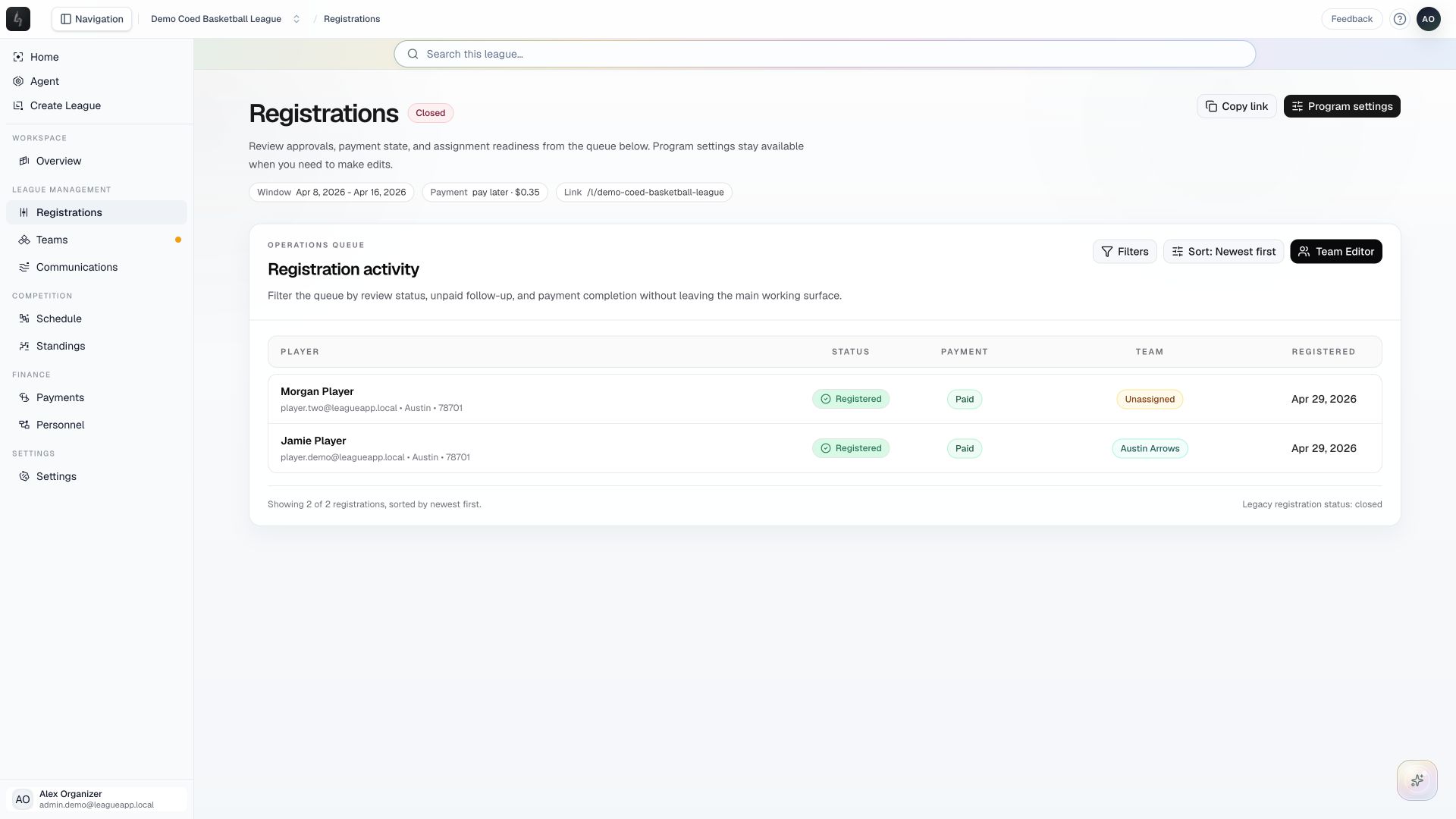
Configure a registration program and review signups, payment state, and roster readiness in one queue.
Screenshots captured October 21, 2026 · Demo workspace
Open the page
Select the league and division, then choose Registrations from the sidebar.
In the workspace
How to use it
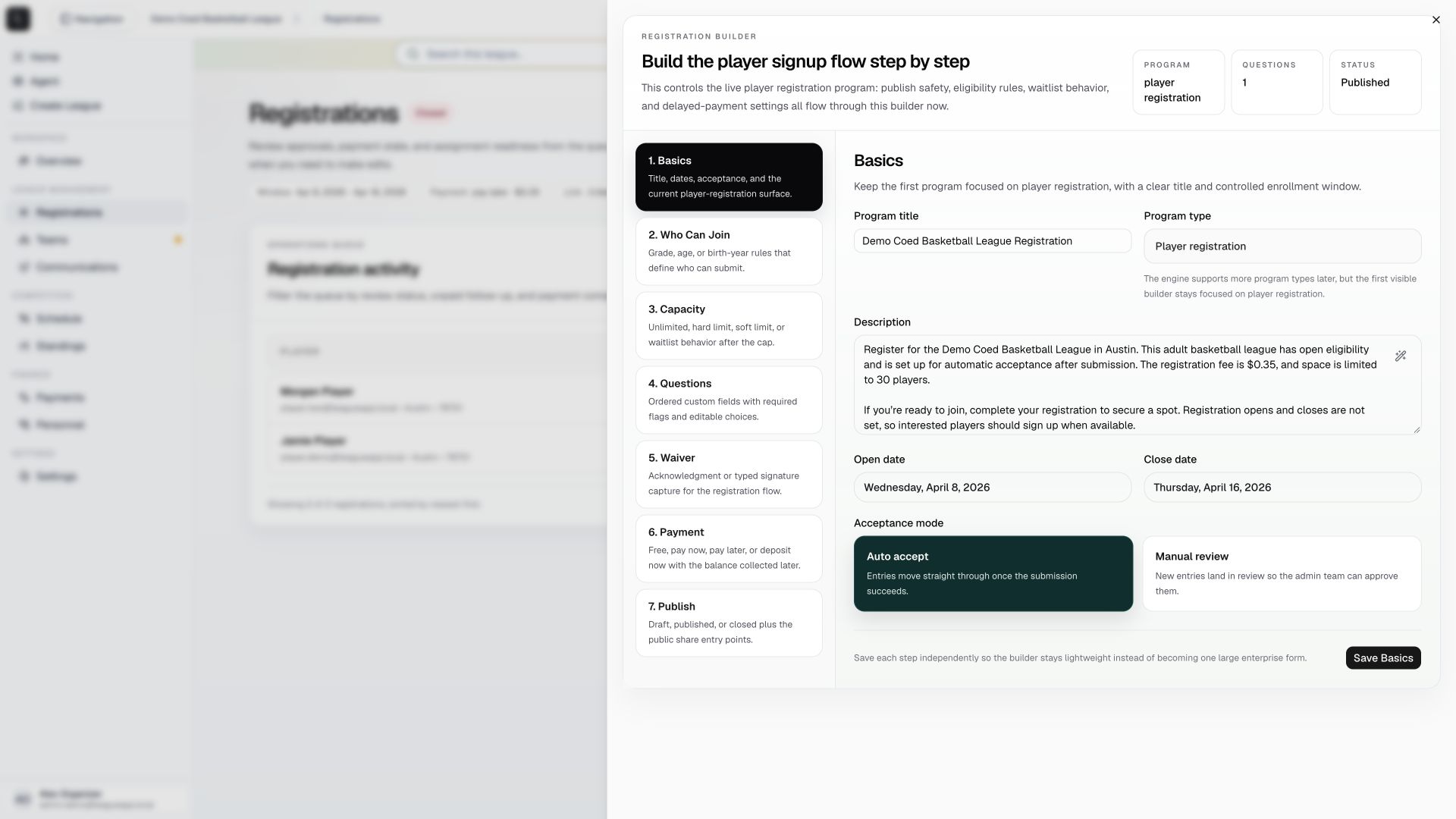
- Choose Program settings to open the registration builder. Review questions, eligibility, capacity, waiver, payment settings, and the registration window before publishing.
- Use Copy link when you are ready to share the program’s registration entry point.
- Review Registration activity. Use Filters to focus on pending review, unpaid entries, completed payments, or the waitlist.
- Open an entry to inspect its details and available actions. Confirm acceptance and payment state before moving a player into a roster.
Things to check
Acceptance and payment are separate states. An accepted player can still have an outstanding balance.
Changes to approvals, refunds, or balances affect the registration record. Check the selected entry and amount before confirming an action.