Running a league · Feature guide
Teams and rosters
Build a team structure, inspect rosters, and place eligible players into teams.
Screenshots captured October 21, 2026 · Demo workspace
Open the page
Select a league and division, then choose Teams from the sidebar.
In the workspace
How to use it
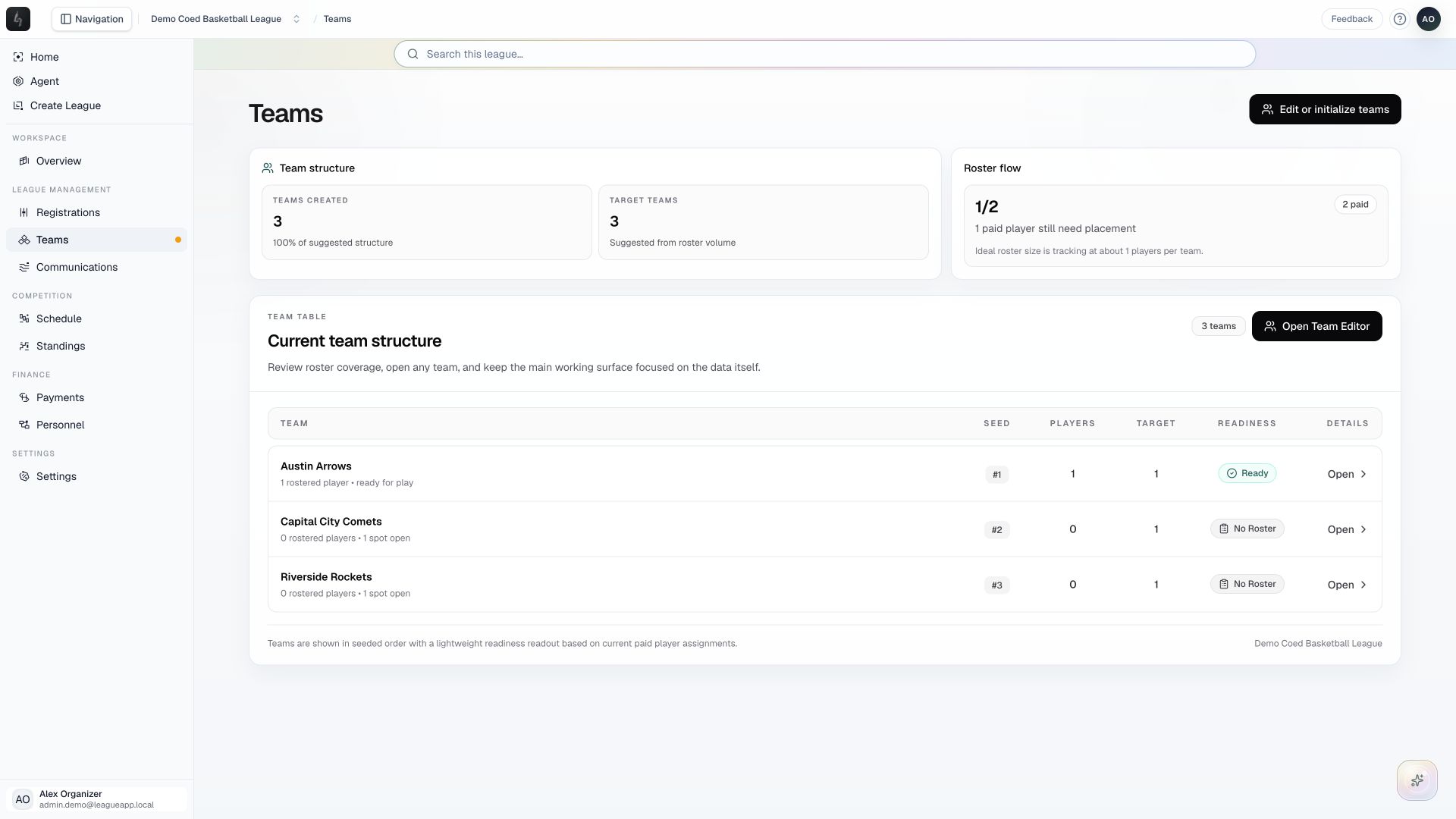
- Review Team structure and Roster flow to see the teams created and players still waiting for placement.
- Choose Initialize teams, or Edit or initialize teams when teams already exist, to open the team editor.
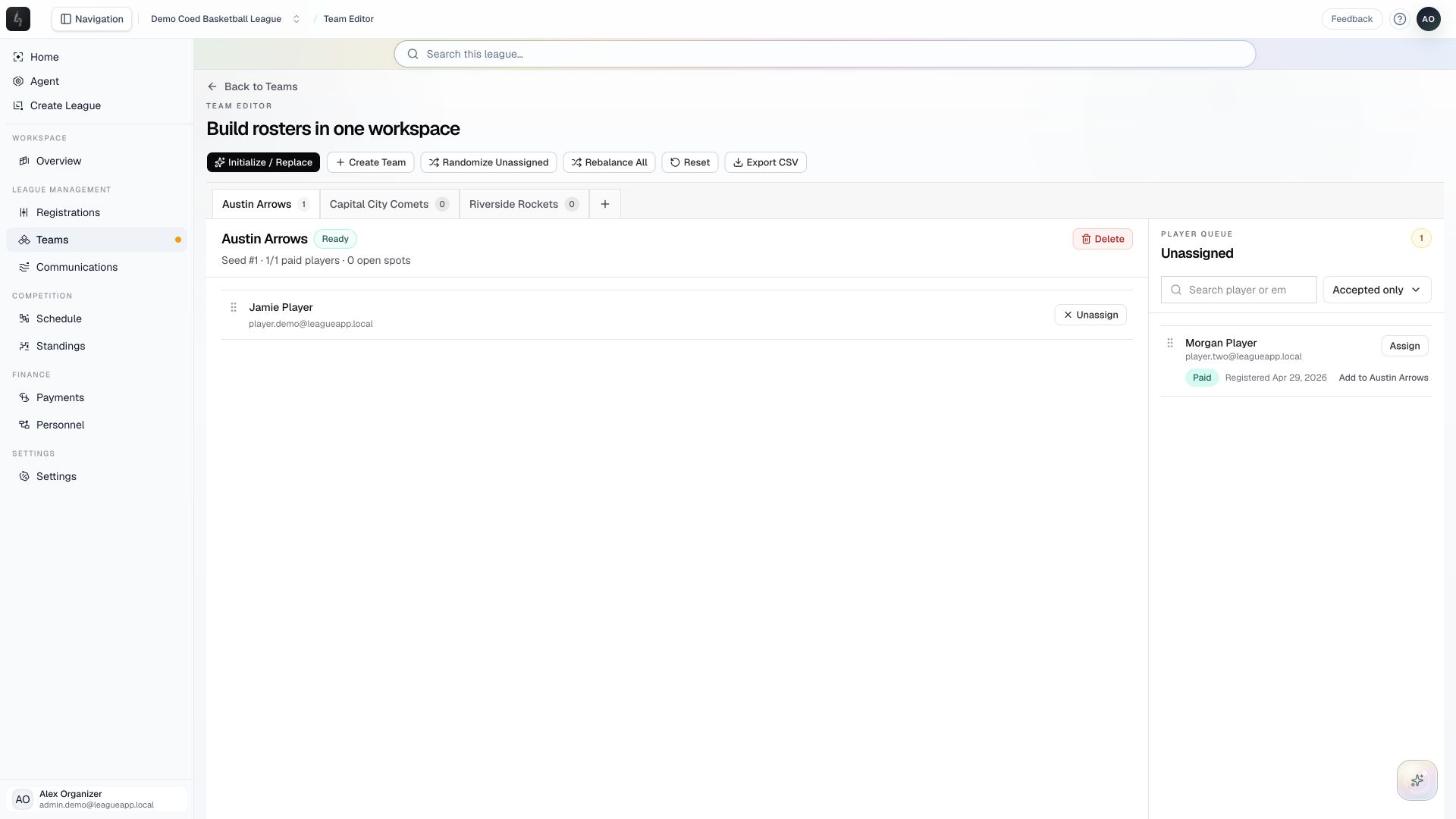
- Use Create Team or Initialize / Replace for team structure. Select a team tab to inspect its roster. From the Unassigned queue, use Assign to choose a destination, or Add to the selected team after checking its name.
- Return to Teams and open a roster to check player placement and remaining spaces.
Things to check
Roster eligibility depends on the registration and payment state; the entire registration queue is not automatically assignable.
Assigning or unassigning a player saves that change directly; there is no separate page-wide Save step. Replacing teams or rebalancing rosters can affect existing assignments, so review the action and its warnings first.