Getting started · Feature guide
League selection
Move between leagues, seasons, and divisions while keeping the workspace in the right context.
Screenshots captured October 21, 2026 · Demo workspace
Open the page
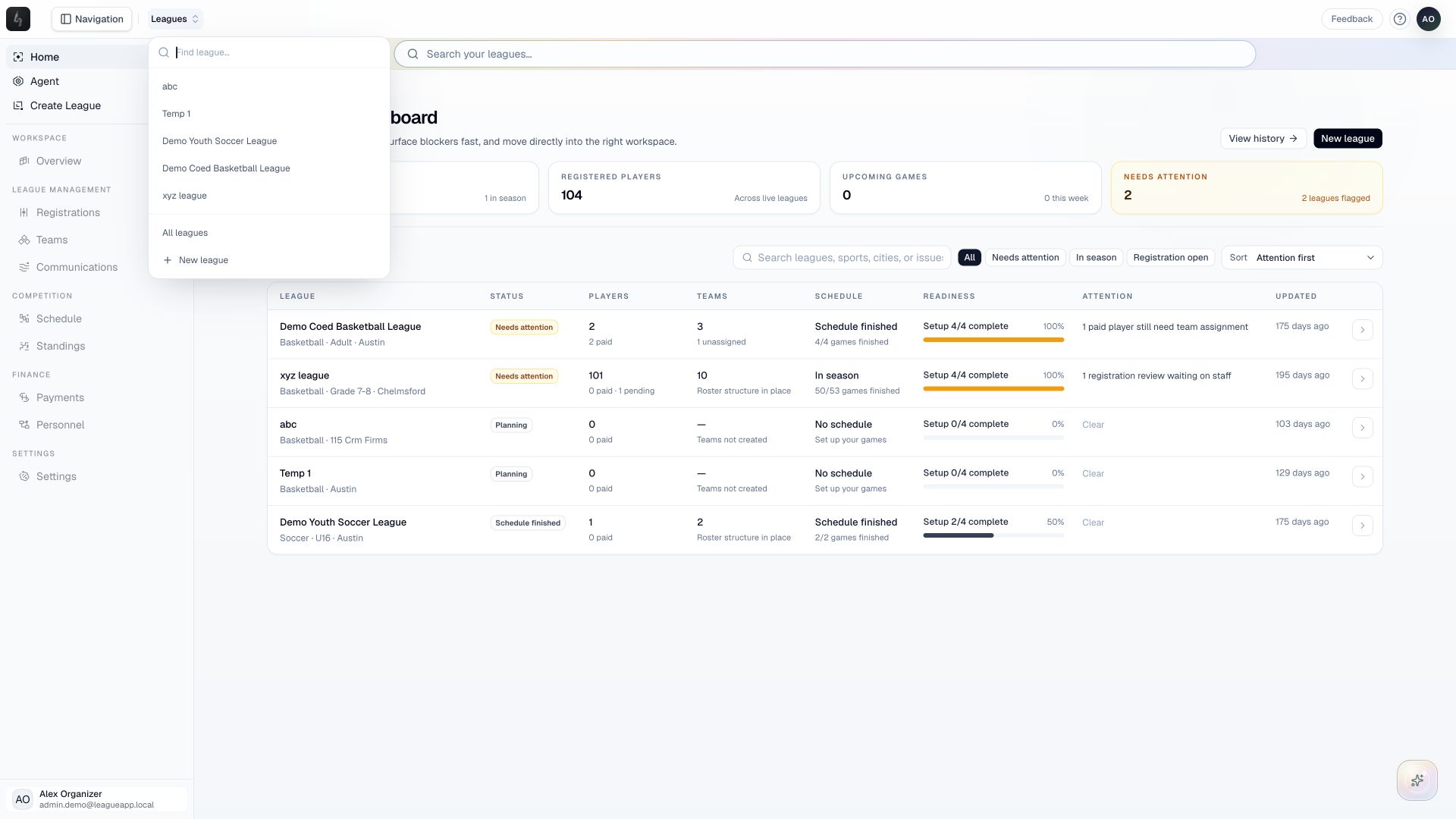
Open a league from Home, then use the league switcher in the organizer header.
In the workspace
How to use it
- Open the league selector in the header and search for the league by name.
- Select the league you want to manage. Confirm the league name shown in the header.
- Use the season selector when you need a different season. For a league with multiple divisions, choose the division you want to work in.
- Open Registrations, Teams, or Schedule from the sidebar after checking the selected context.
Things to check
Registrations, rosters, and schedules belong to a specific working context. Check the season and division before editing.
A division only appears in the context of a season that includes it. A league with one division has a simpler navigation view.